Start recording a session
Prepare a client session, check your audio and start a remote or in-person recording.
2 mins read
Start recording from a prepared client session. Choose the recording option that matches whether you and the client are meeting remotely or in the same room.
Make sure the client has consented to AI transcription before you begin recording.
1. Open a session for the client
To create a session, click the + button on the Home screen.
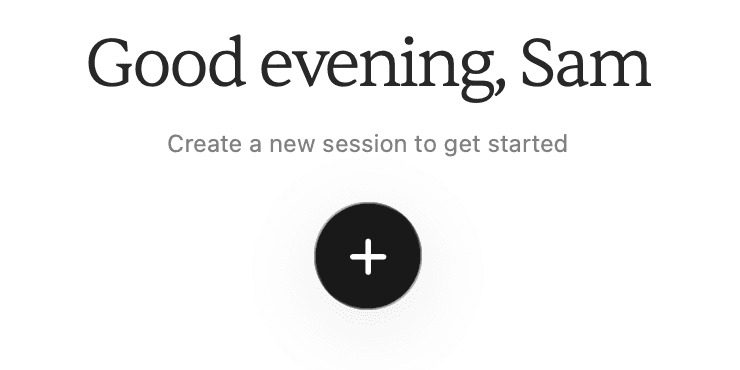
You can also use the + button in the app toolbar.

In the new session, click Unknown Client and choose the client’s name. If you already have a prepared session, select it under the client in the sidebar.
2. Check your audio
Click the headphones button beside Start Session to check your audio. Check that your headphones are detected for a remote session, and that your preferred microphone is selected.

3. Click Start Session
Click Start Session in the top-right toolbar. This opens the session-type chooser.

4. Choose how you are meeting
Select the option for this session:
Record remote session for a call on your Mac.
Record in-person session when you and the client are in the same room.
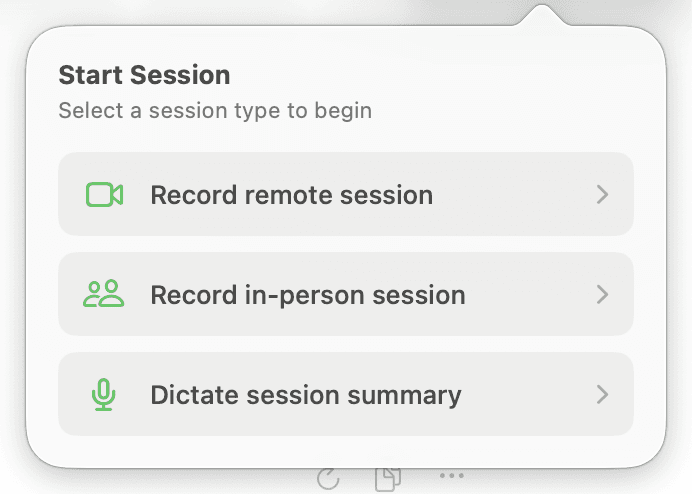
Check that the toolbar shows Stop Session once recording has started.
Dictate session summary is available when you want to speak your own summary of a session.
All people and session content shown in these screenshots are fictitious.