Generate a Client Session Summary
Create a client-facing summary from a session Transcript, review the draft and prepare it to share.
2 mins read
A Client Session Summary turns a completed session’s Transcript into a short, client-facing draft. It helps you prepare a recap of the session and any agreed next steps for the client.
1. Open the completed session
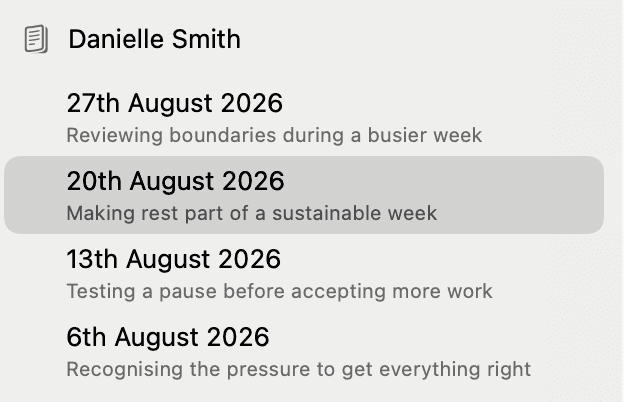
Select the client and the relevant completed session in the sidebar. You’ll use the tabs and More menu above the session content to create the summary.
2. Choose Client Session Summary
Click More, move to Client Documents, then choose Client Session Summary.
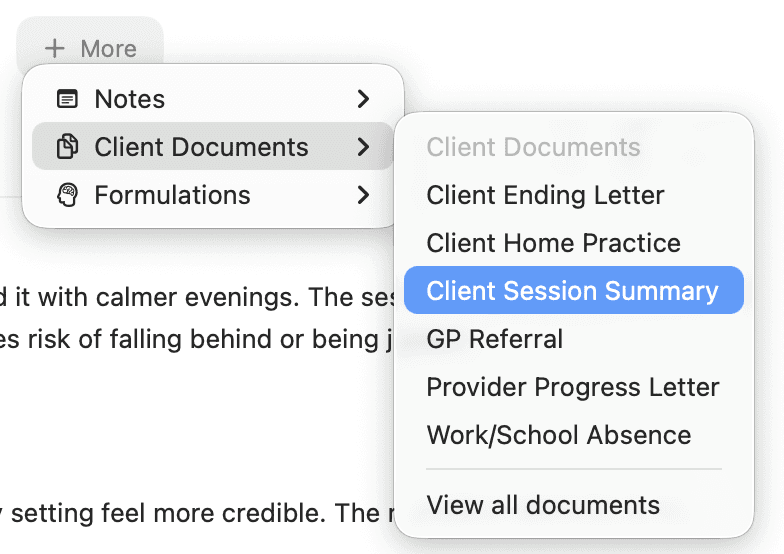
AirNote adds the document as a session tab. Wait for the draft to finish generating. If a Client Session Summary already exists for this session, the menu opens that document.
3. Review and edit the draft
Read the summary before sharing it. Check that it reflects the session, that any next steps were agreed, and that the wording is suitable for the client.
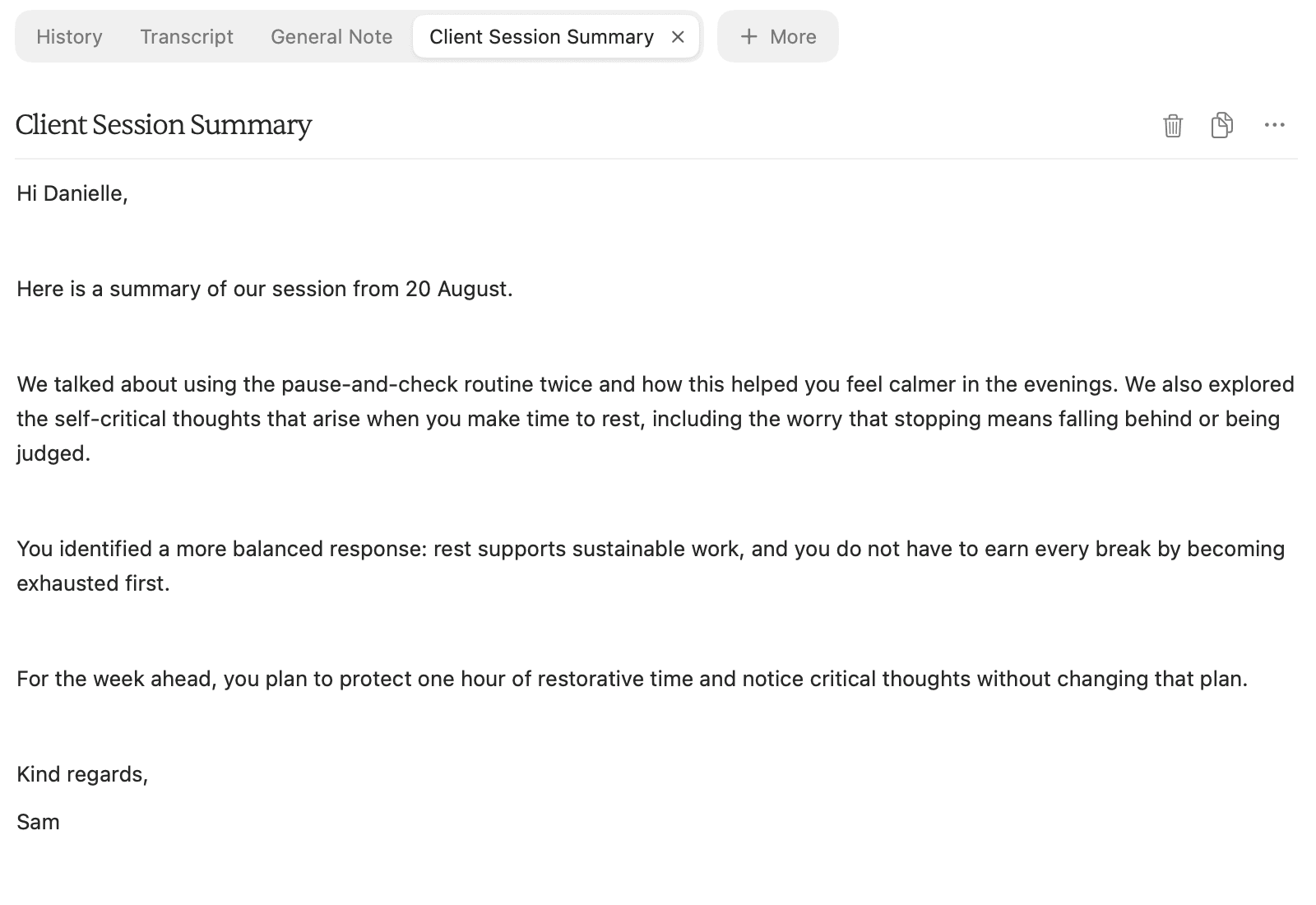
Click in the document to make changes. Edits save automatically. The example below shows an edited summary.
4. Prepare the summary to share
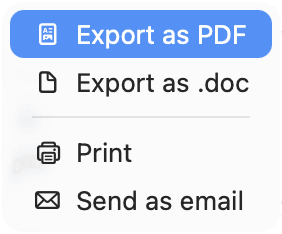
Use Copy above the document to copy the reviewed text. To save a file, open the three-dot Actions menu and choose Export as PDF or Export as .doc.
Generating the summary does not send it to the client. Review the content and recipient before sharing it.
All people and session content shown in these screenshots are fictitious.