Create a data pack in response to a Data Access Request (DAR)
Export a client's stored AirNote records into a Word-compatible data pack for review.
3 mins read
Bring together a client’s stored AirNote records in one Word-compatible document to help prepare a response to a Data Access Request. You can choose the client, the session time period and the types of information to include.
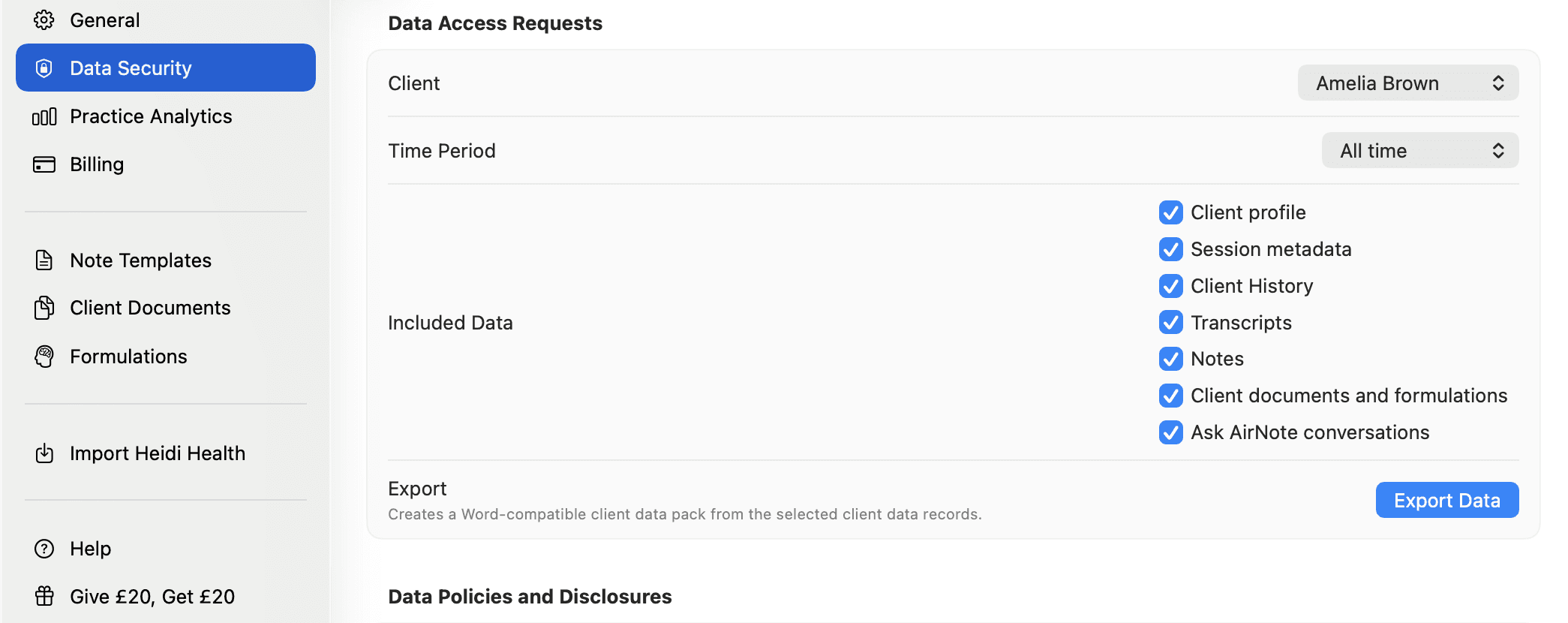
1. Open Data Access Requests
Click the Settings cog at the bottom of the sidebar.

Select Data Security, then scroll to Data Access Requests.
2. Choose the client and time period
Use Client to select the person whose records you want to export. In this example, Danielle Smith is selected.
Choose Time Period. The options are One month, Three months, Six months, One year and All time. These periods select sessions by their date; All time includes all of the client’s stored sessions, including archived sessions.
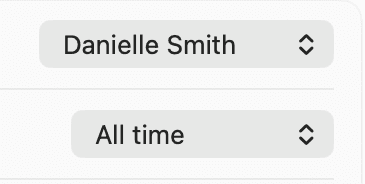
The export contains information still stored in AirNote. All time cannot recover records that have already been deleted. The time period filters sessions; it does not limit the current client profile to that period.
3. Choose the information to include
Under Included Data, leave selected the types of information you want in the pack. You can include:
Client profile
Session metadata
Client History
Transcripts
Notes
Client documents and formulations
Ask AirNote conversations
All seven options are selected initially. Select at least one to enable the export.
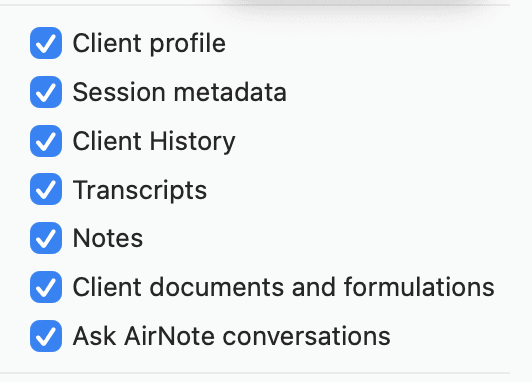
Client profile includes the client’s current Client History and Additional Context. If you include the profile, these remain part of the pack even when the separate Client History option is unticked.
4. Export and save the data pack
Click Export Data.

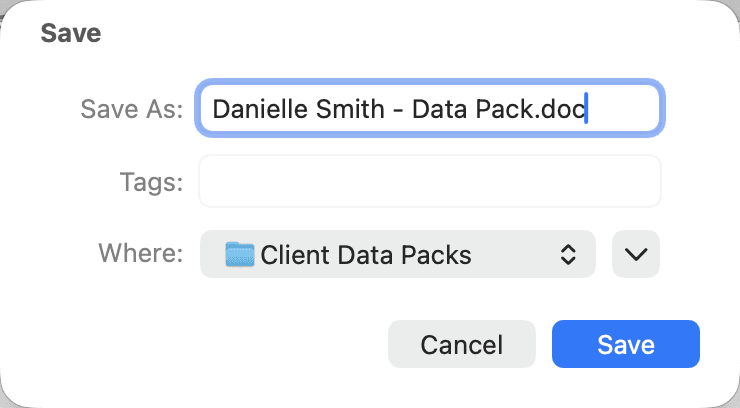
Choose a file name and destination, then click Save. AirNote saves a Word-compatible .doc file.
5. Review the exported records
Open the saved document in an application that can read Word documents. Start with Export Summary to check the client, time period, included data types and number of matching sessions.
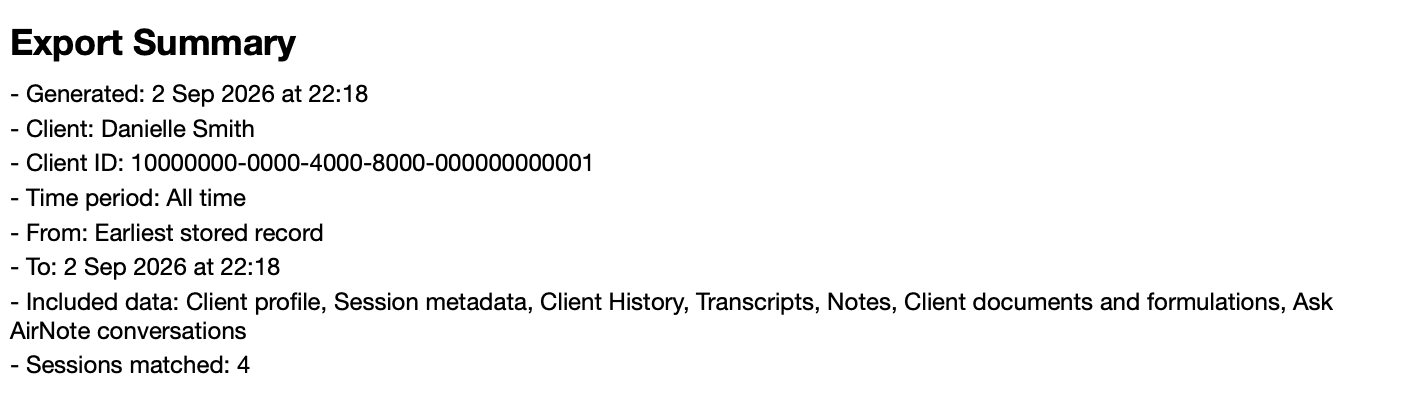
Read through the contents before using the pack in your response. Where a selected type of information is not stored for a session, the document says so. Creating the pack saves a file on your Mac; it does not send the records to the client.
All people and session content shown in these screenshots are fictitious.