Change a client’s name
Update the name on a client’s record while keeping their sessions linked to them.
1 min read
Update a client’s name to correct a spelling or reflect a name change.
1. Open the client’s details
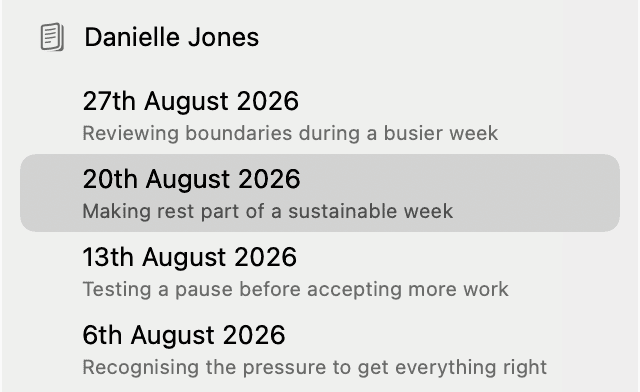
Select a session for the client in the sidebar, then click the button showing their first name in the main toolbar (Danielle in this example).

You can also right-click the client’s name in the sidebar and choose View/Edit Client.
2. Edit the name
At the top of the panel, replace the text under Edit Client Name with the name you want to use.

3. Save your changes
Click Save Changes at the bottom of the panel.

The panel closes and the updated name appears in the sidebar. The client’s sessions stay linked to their record.
Changing a client’s name does not rewrite existing Notes. Edit a Note separately if you need to update a name within its text.
All people and session content shown in these screenshots are fictitious.